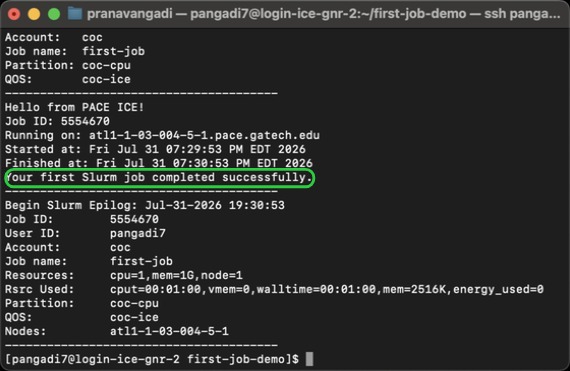
205 - Submitting Your First Job
Made by CS 8803 MGT & Leadership GT with Scribe
Create a simple Slurm script, submit it with sbatch, monitor it with squeue, and read the resulting output file.
Directory Setup
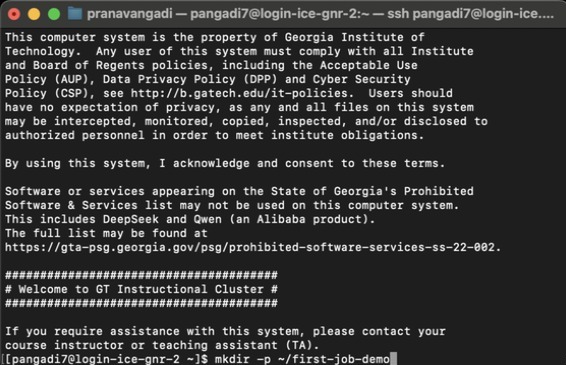
1. Create a folder for your first job
Type “[[mkdir -p ~/first-job-demo]] [[Return]]”
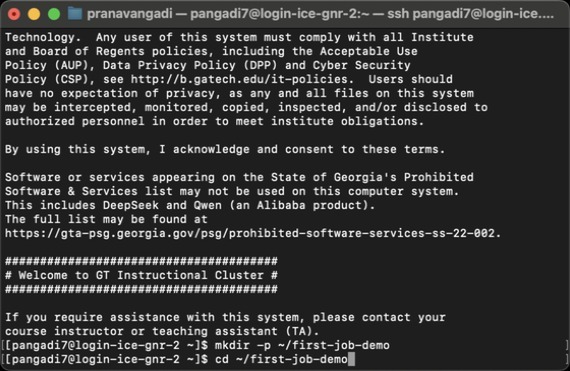
2. Open the first-job folder
Type “[[cd ~/first-job-demo]] [[Return]]”
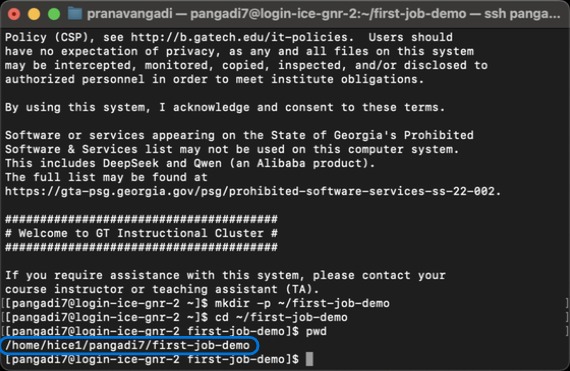
3. Confirm your working directory
Type “[[pwd]] [[Return]]”
Create the Job Script
4. Open a new Slurm script in Nano
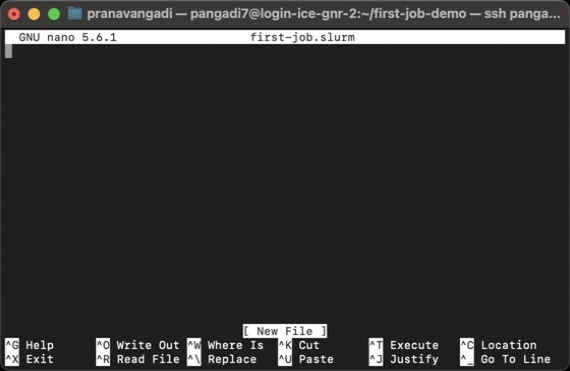
Type “[[nano first-job.slurm]] [[Return]]”
It will open a window as shown below.
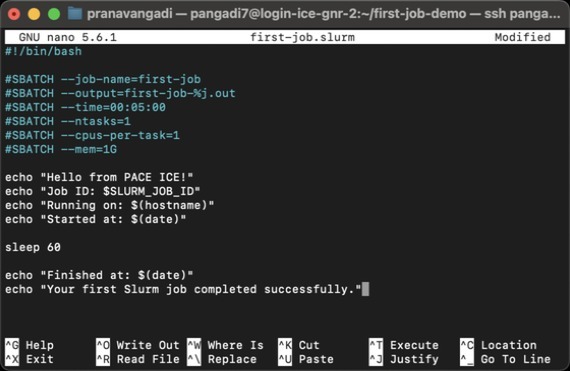
5. Paste and Save the Slurm script as first-job.slurm
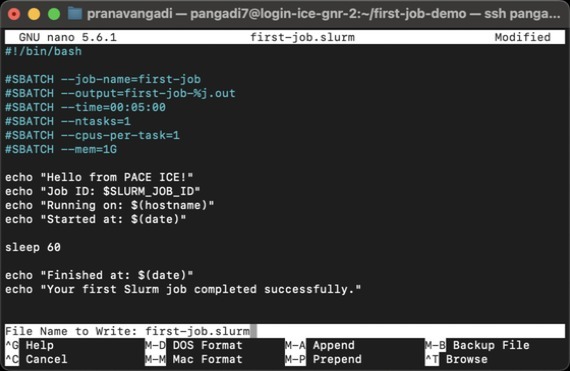
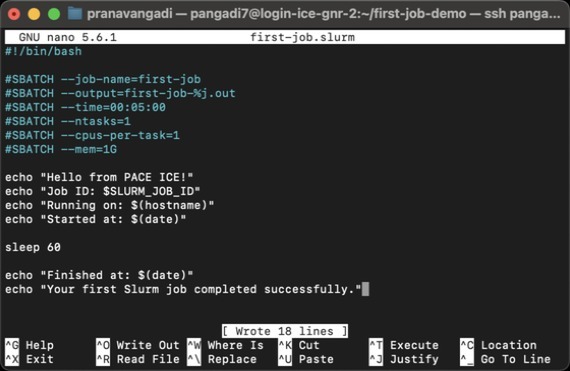
Paste script then Type “[[Ctrl]] + [[O]] [[Enter]] “
6. Exit Nano After Saving
Press [[Ctrl]] + [[X]] to exit
Tip: Tip!
Display the file to make sure it was saved correctly:
[[cat first-job.slurm]]
Submit the Job
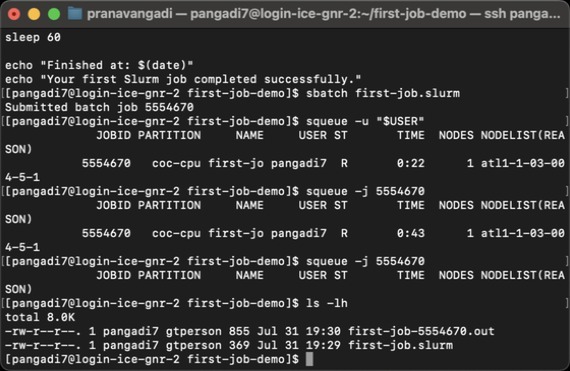
7. Submit the job to Slurm
Type “[[sbatch first-job.slurm]] [[Return]]”
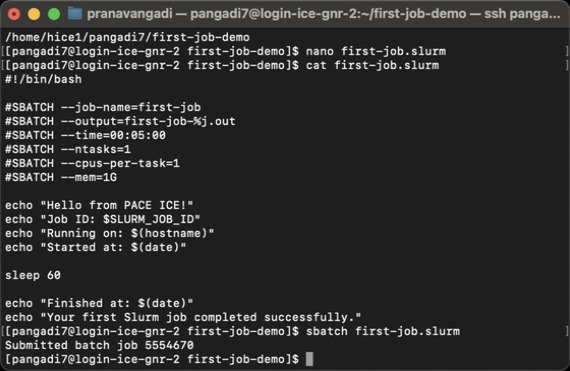
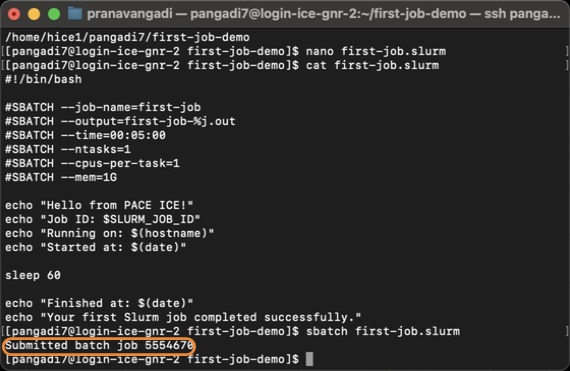
8. This number is your job ID. Your number will be different!
Monitor Job Status
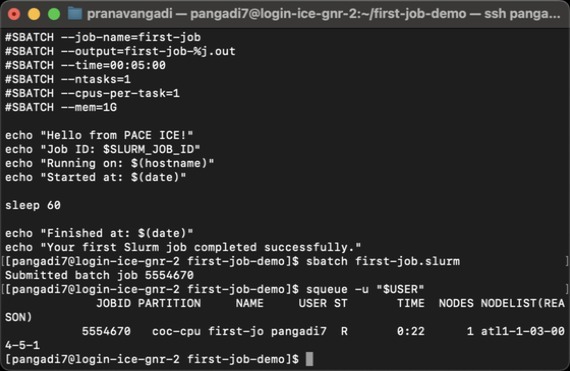
9. Check your job in the queue
Type “[[squeue -u “$USER”]] [[Return]]”
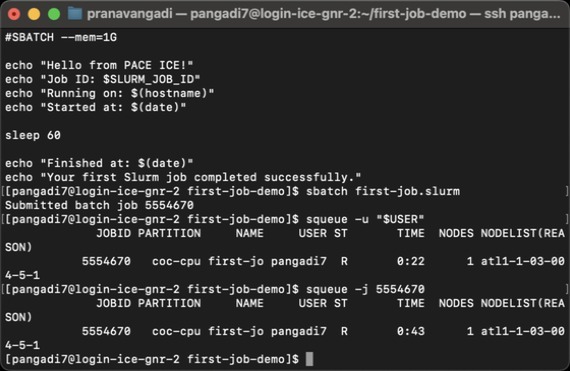
10. Check your job by its ID
Type “[[squeue -j 5554670]] [[Return]]”
Tip: Tip!
- R means the job is running.
- PD means the job is waiting to run.
- Wait about one minute and check again. If the job no longer appears, it has left the queue.
Verify Job Output
11. Find the Slurm output file.
Type “[[ls -lh]] [[Return]]”
12. Read the job’s output.
Type “[[cat first-job-5554670.out]] [[Return]]”
A successful job should end with “Your first Slurm job completed successfully”