
101-How to Install and Configure GlobalProtect VPN
Made by Bilal Assaad with Scribe
This guide provides a comprehensive walkthrough for downloading, installing, and setting up the GlobalProtect VPN client on your Mac. Follow these steps to ensure a successful connection to the Georgia Tech network for secure remote access.
Portal Access
1. Navigate to the Georgia Tech VPN portal.

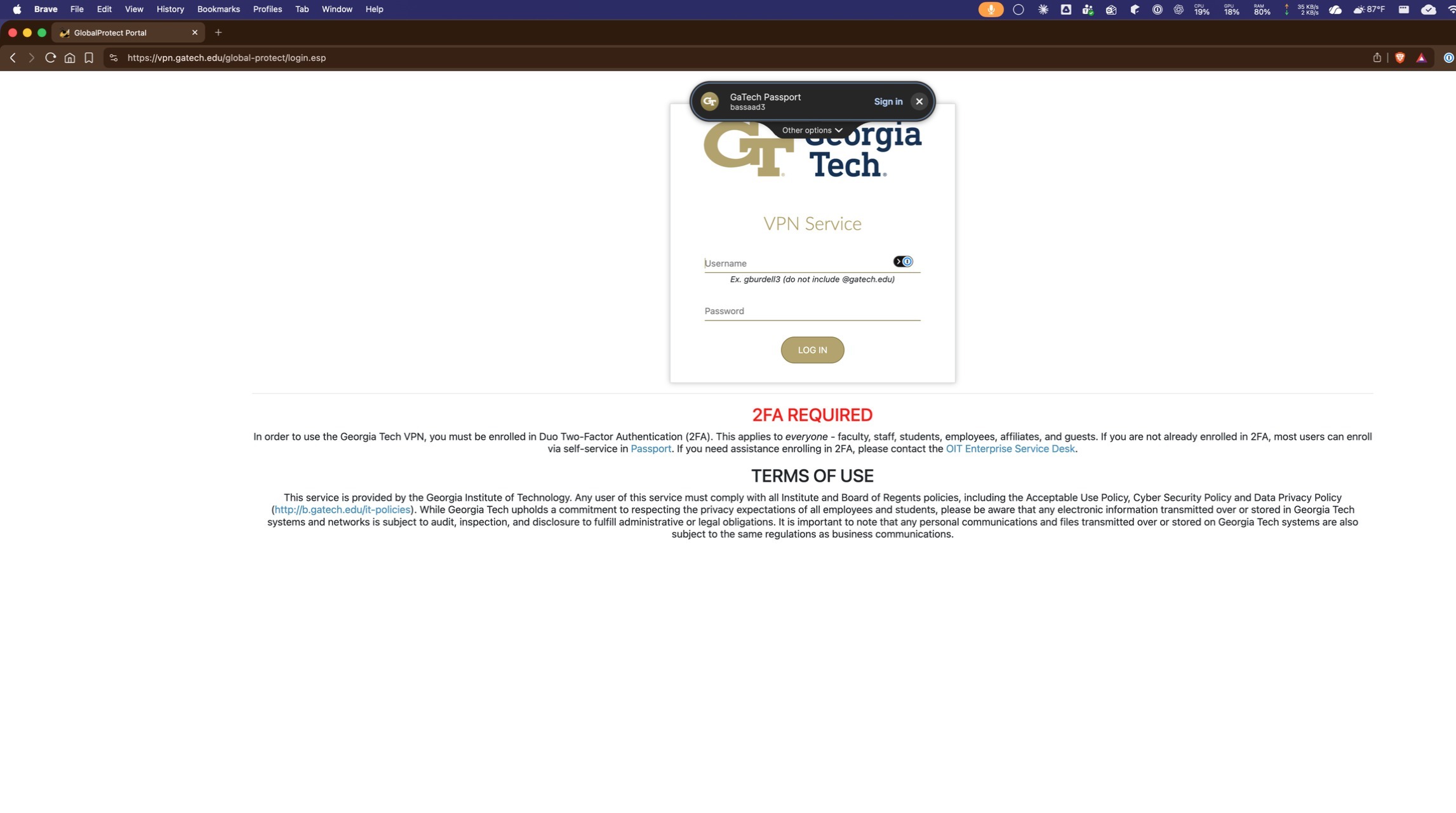
2. Sign in with your account credentials.
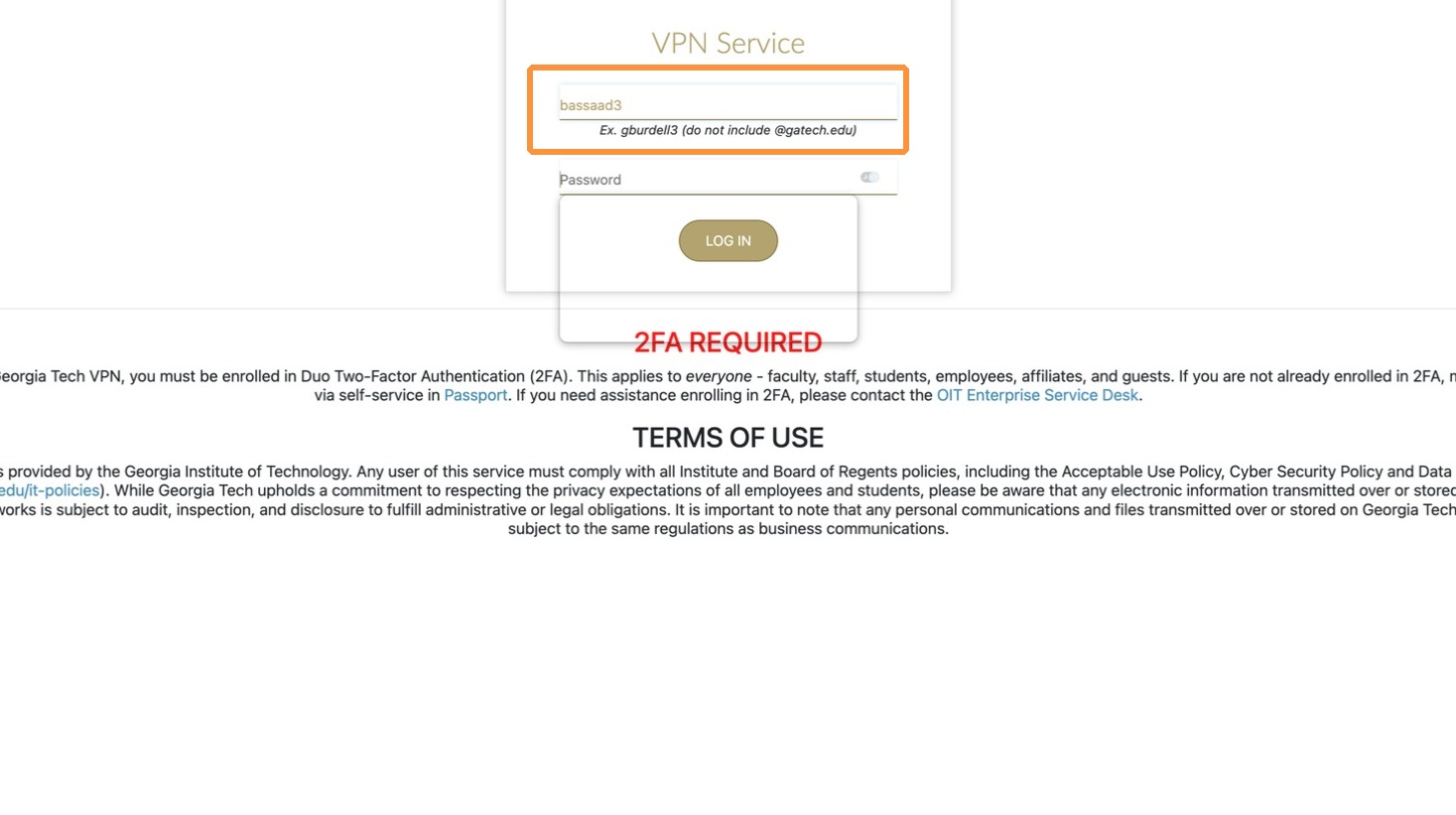
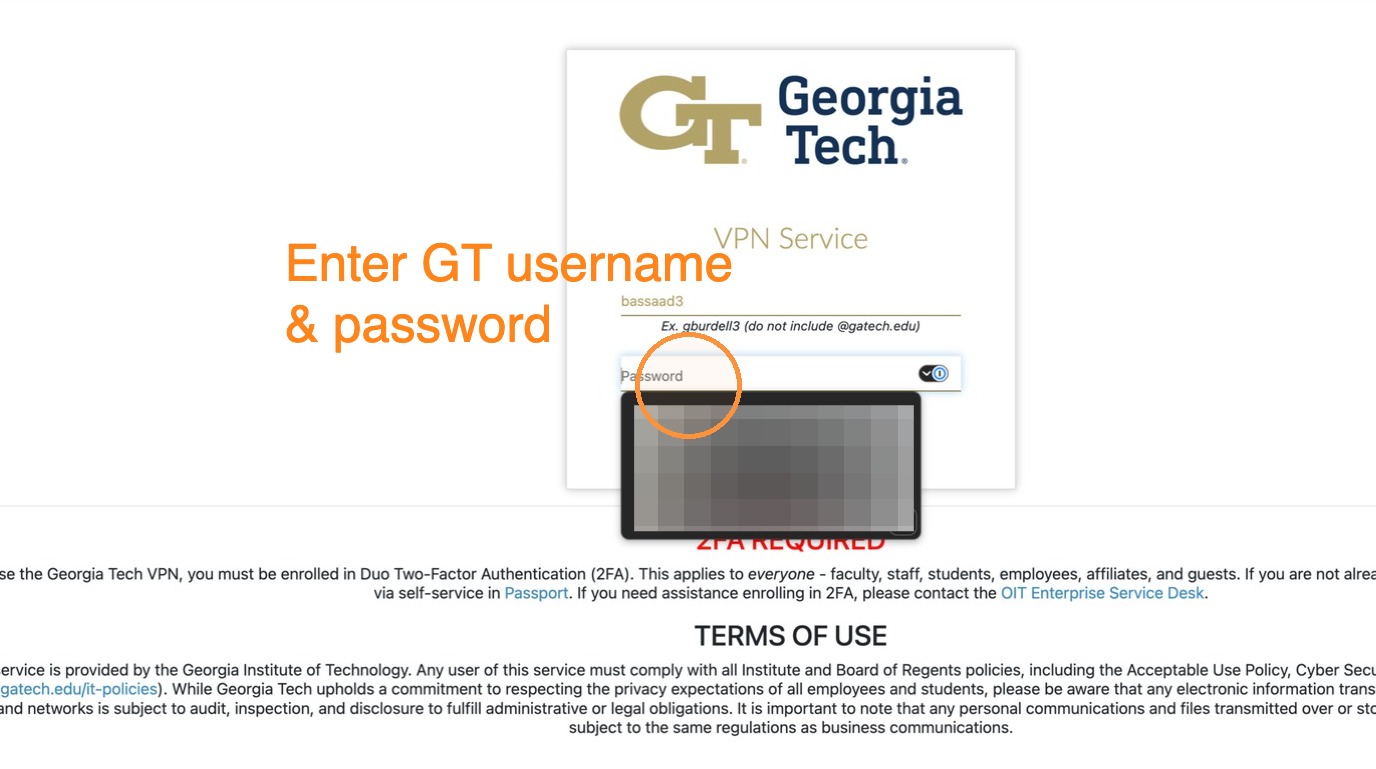
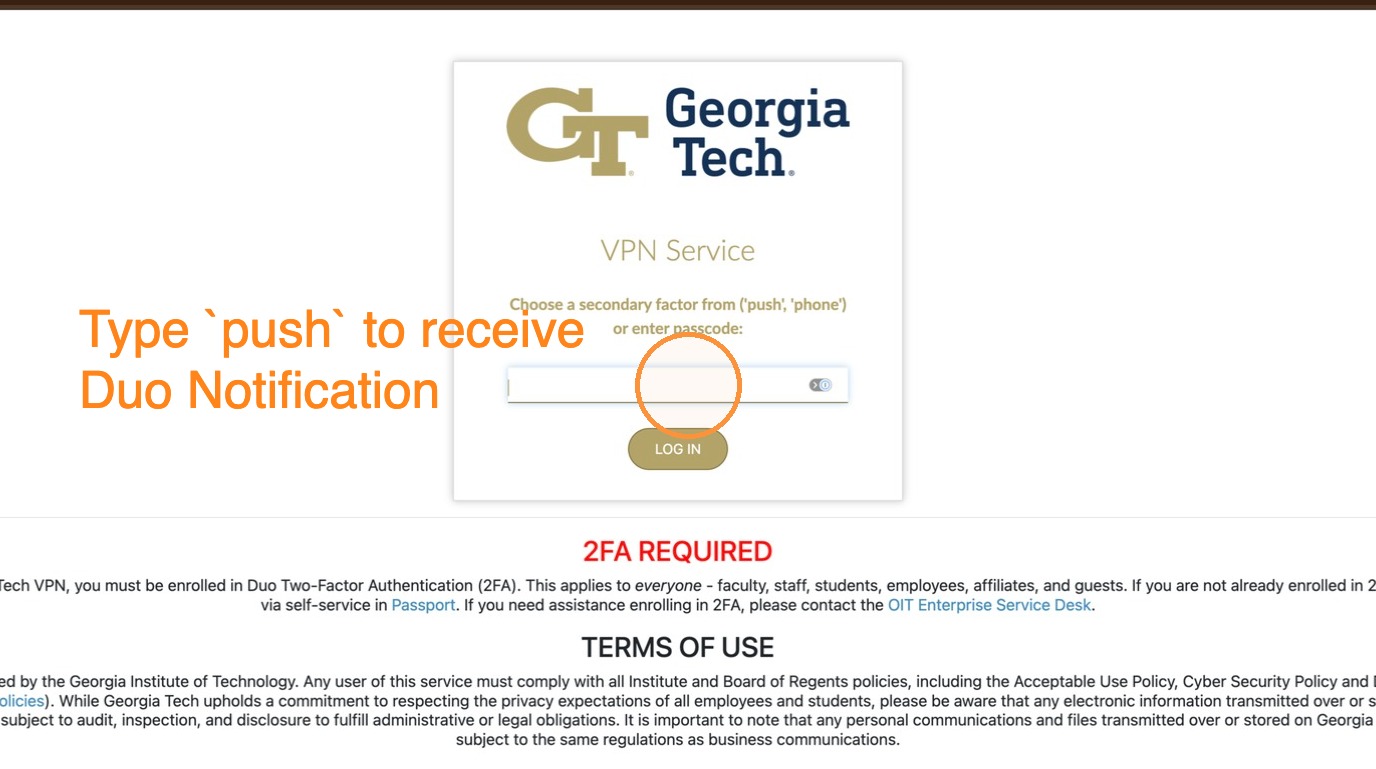
3. Enter your 2FA passcode or verification method.
Software Download
Tip: KB0042139 Configure the GT VPN
4. Click the download link to
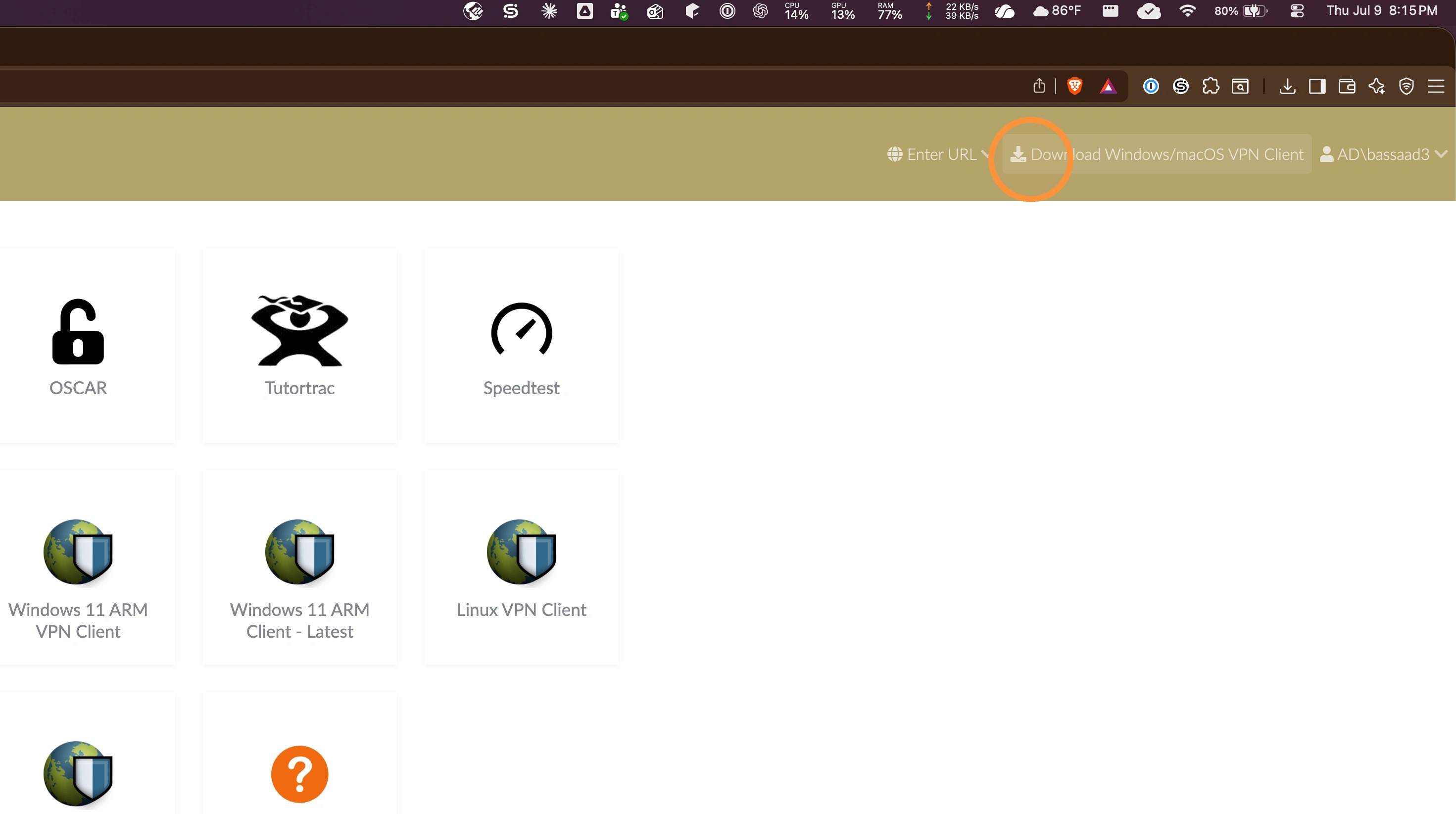
Tip: KB0026743 How to install GlobalProtect VPN Client for macOS
Tip: KB0026742 How to install GlobalProtect VPN Client for Windows
5. Click the download link for the Mac GlobalProtect agent.
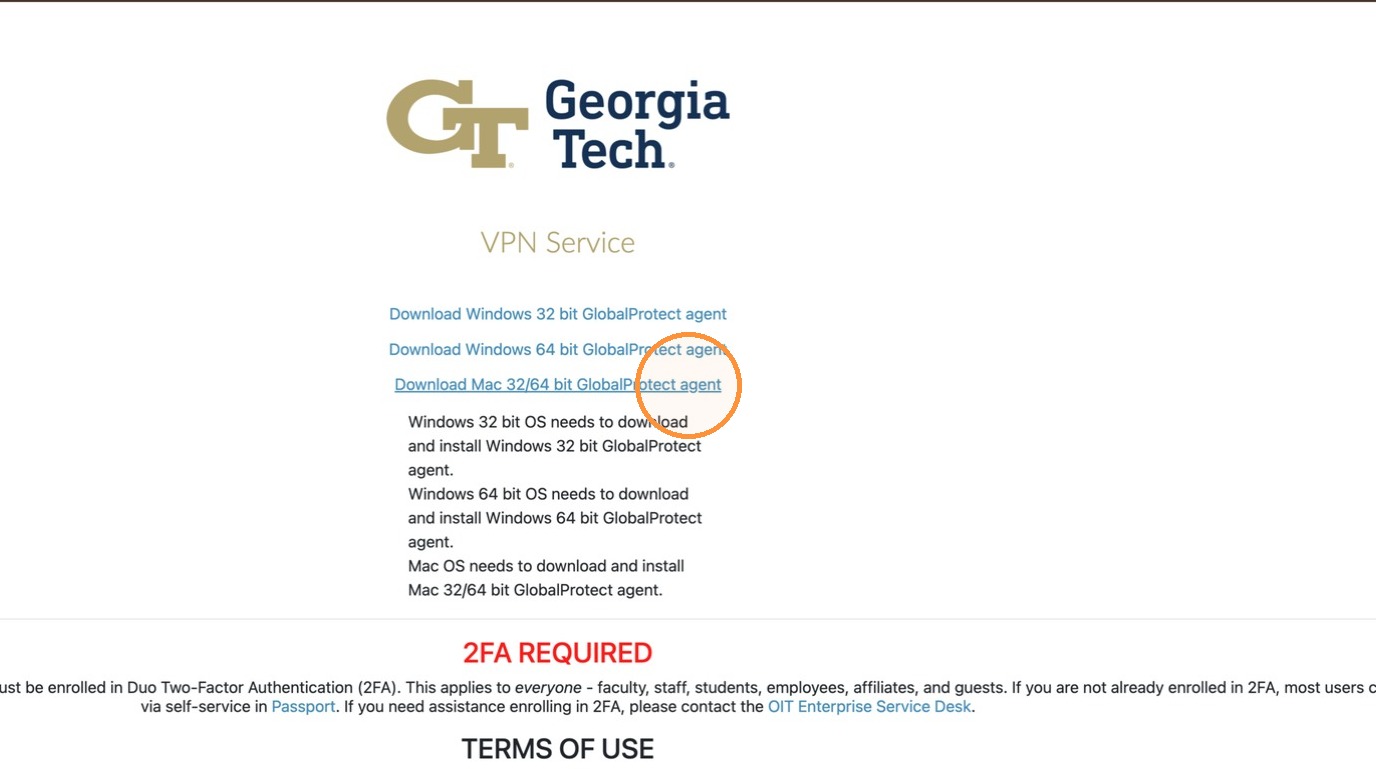
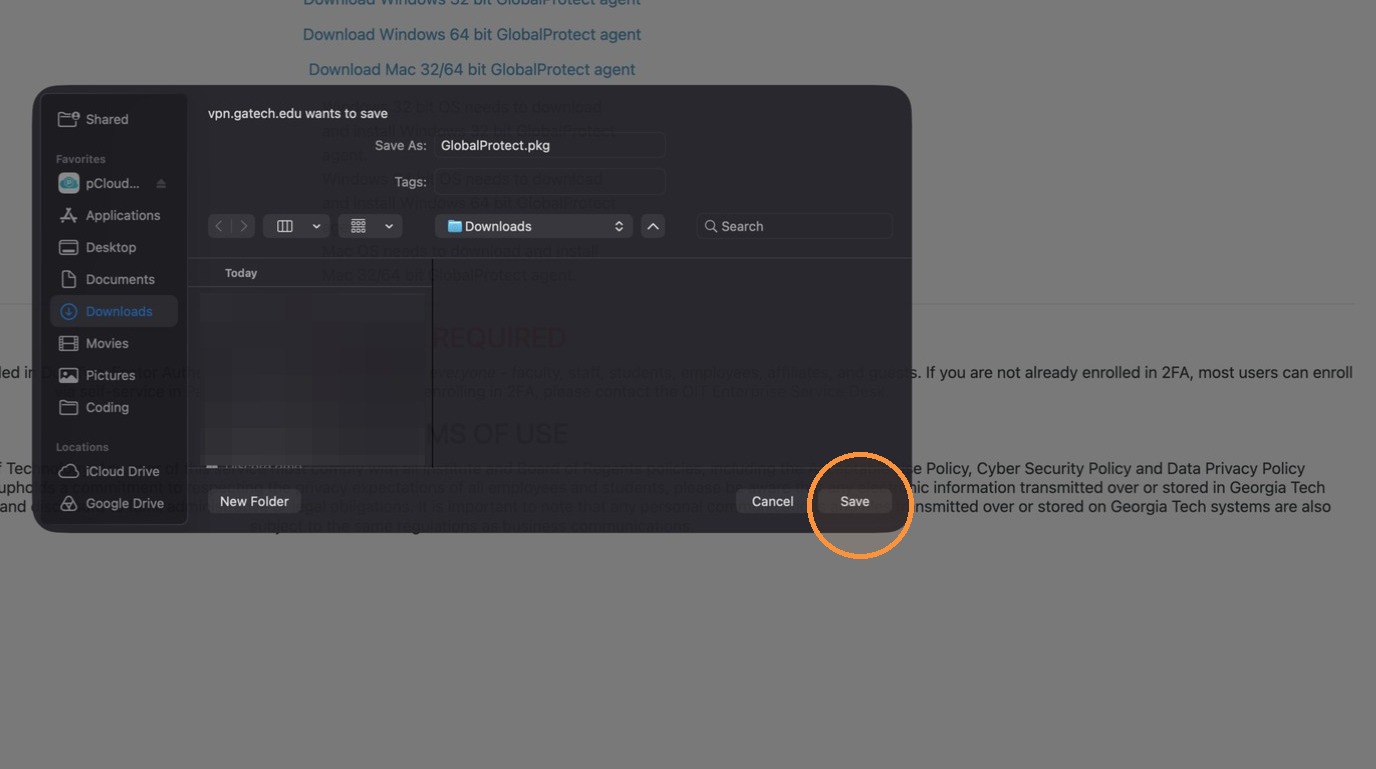
6. Save the installer file to your computer.
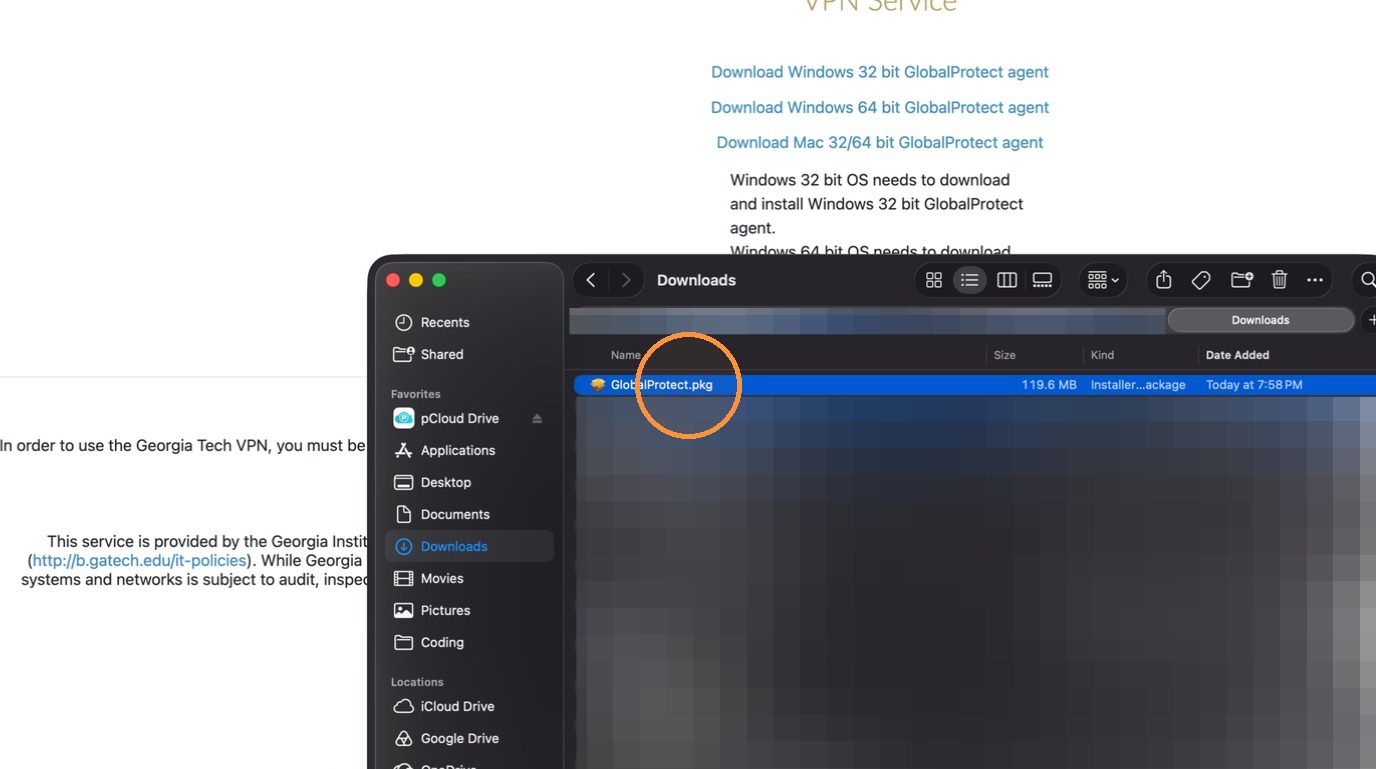
7. Navigate to your Downloads folder.
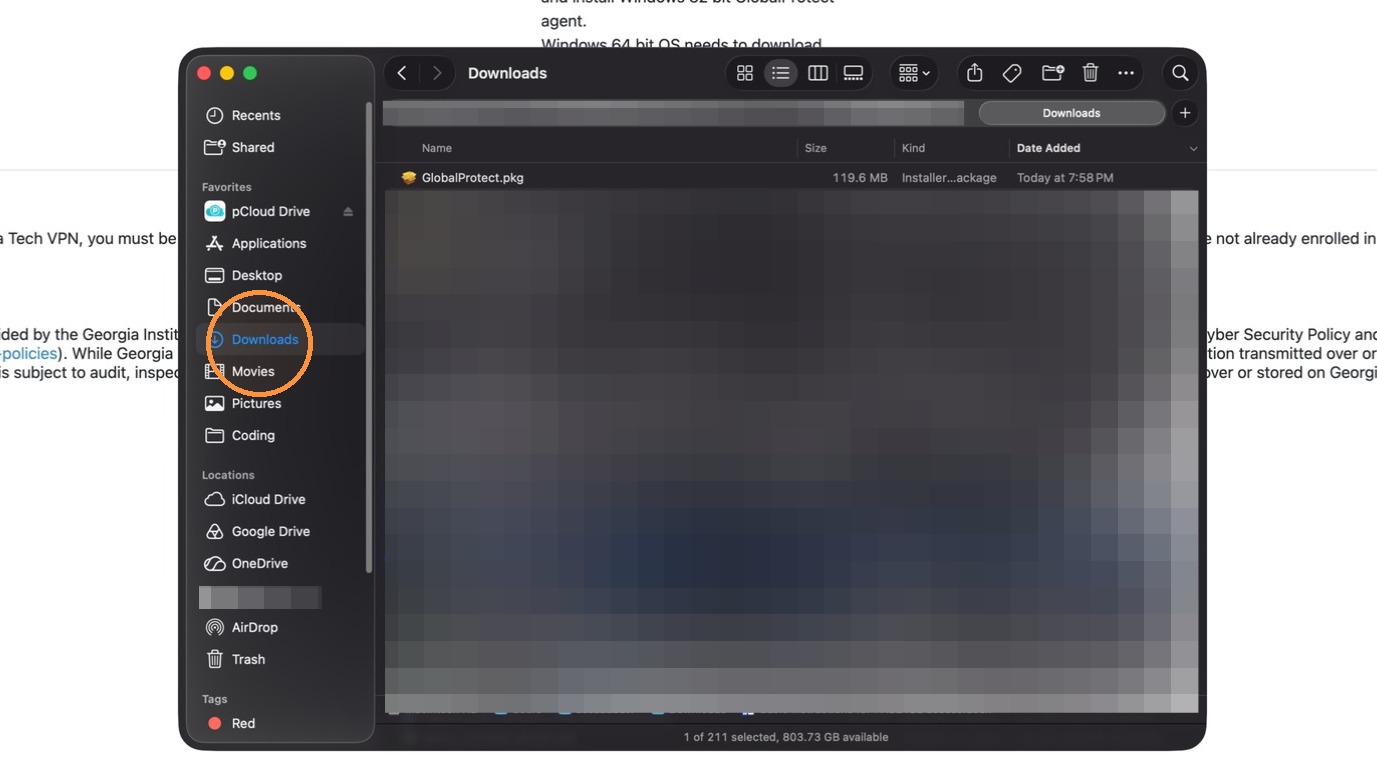
8. Double-click the installer package to begin the process.
Installation
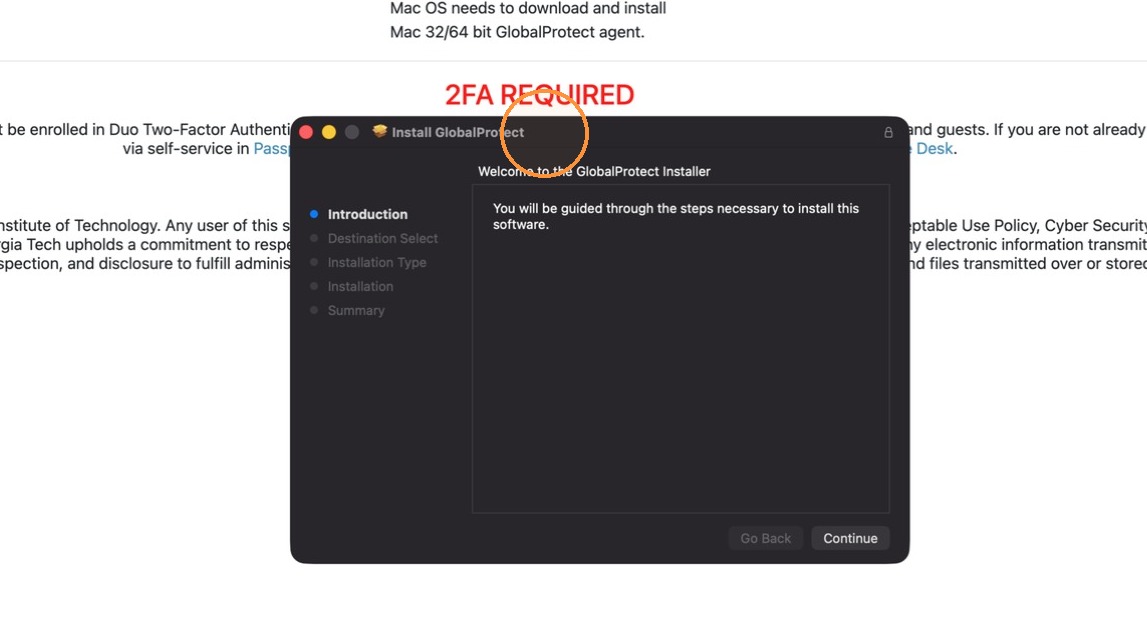
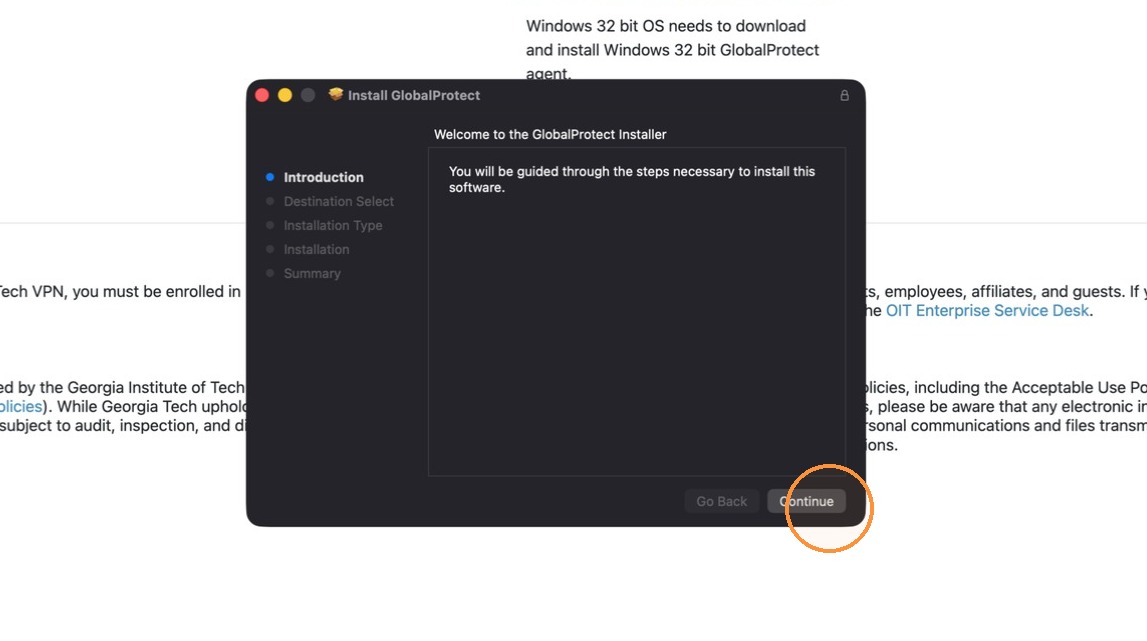
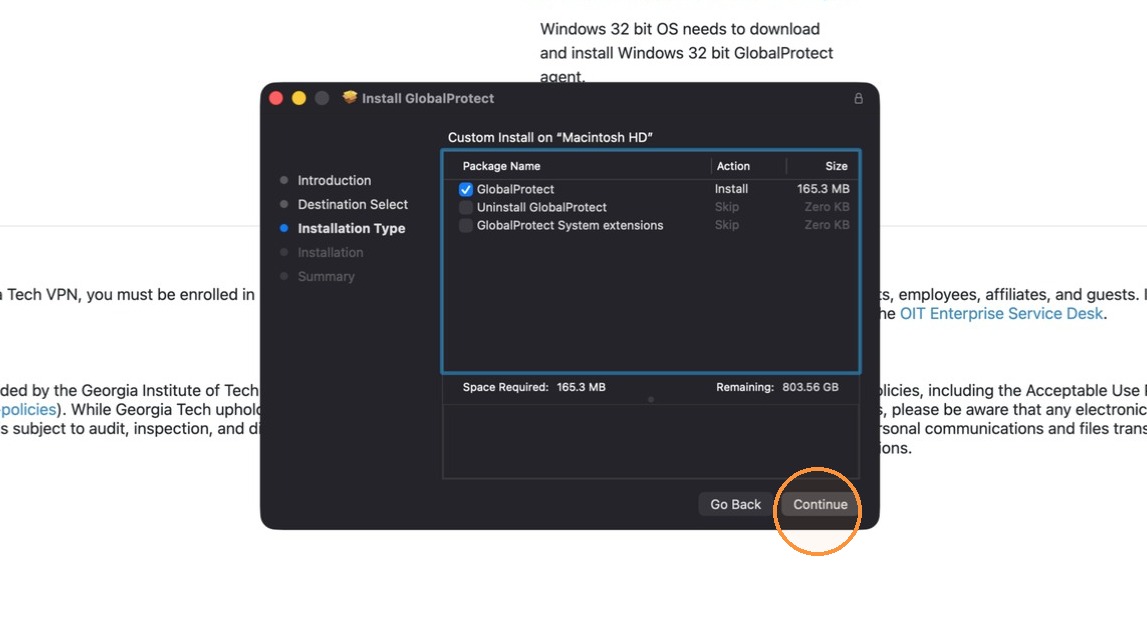
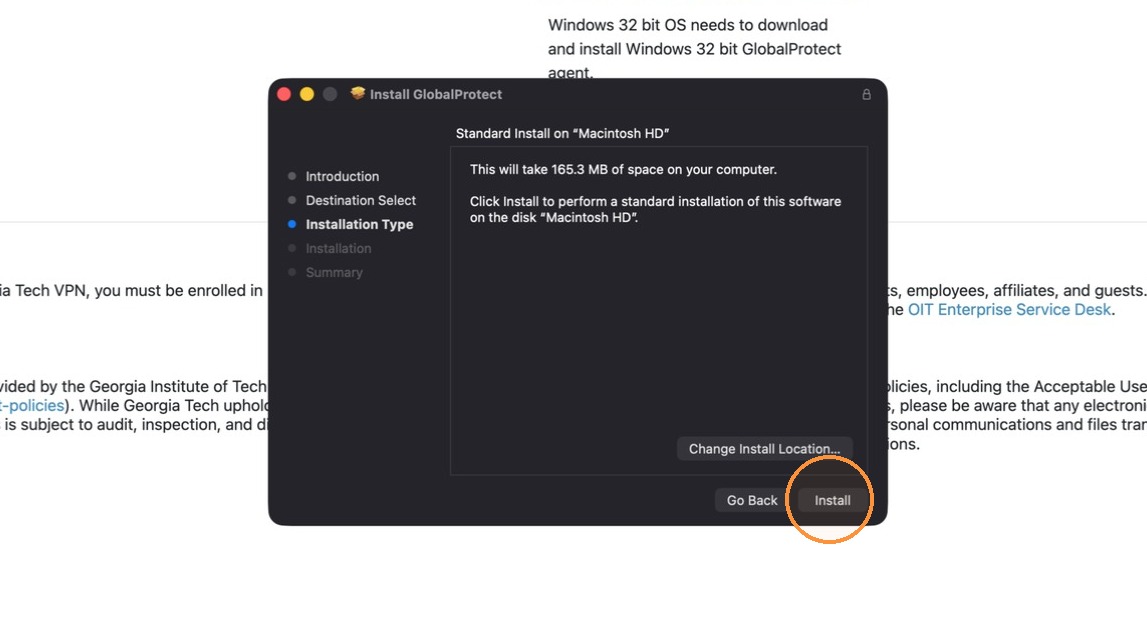
9. Proceed through the GlobalProtect installation wizard prompts.
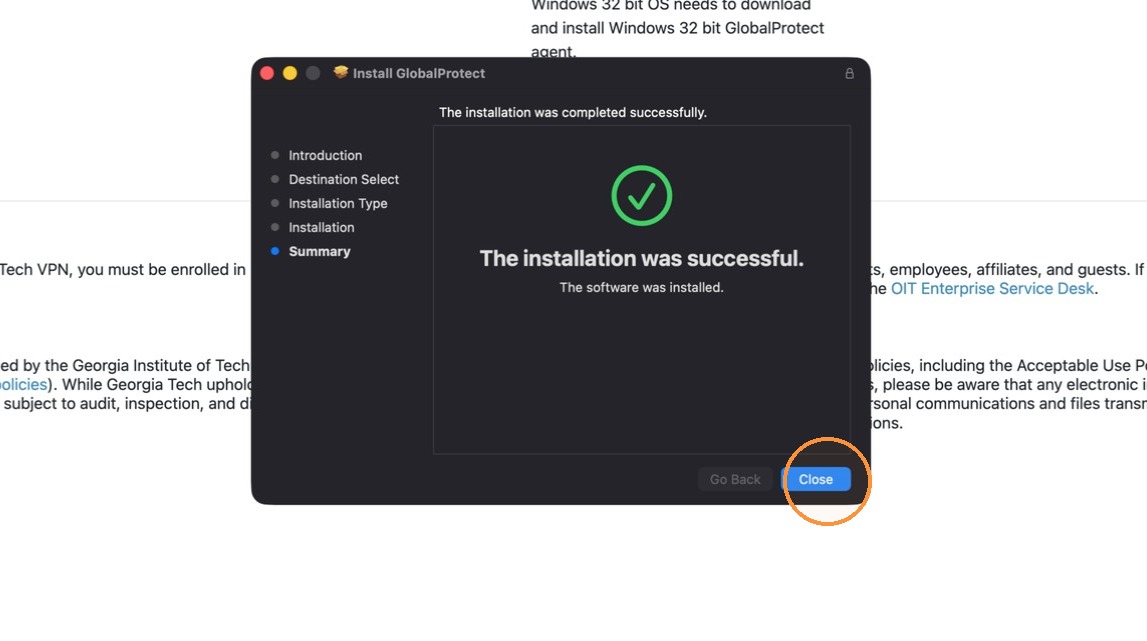
10. Click “Close”
VPN Configuration
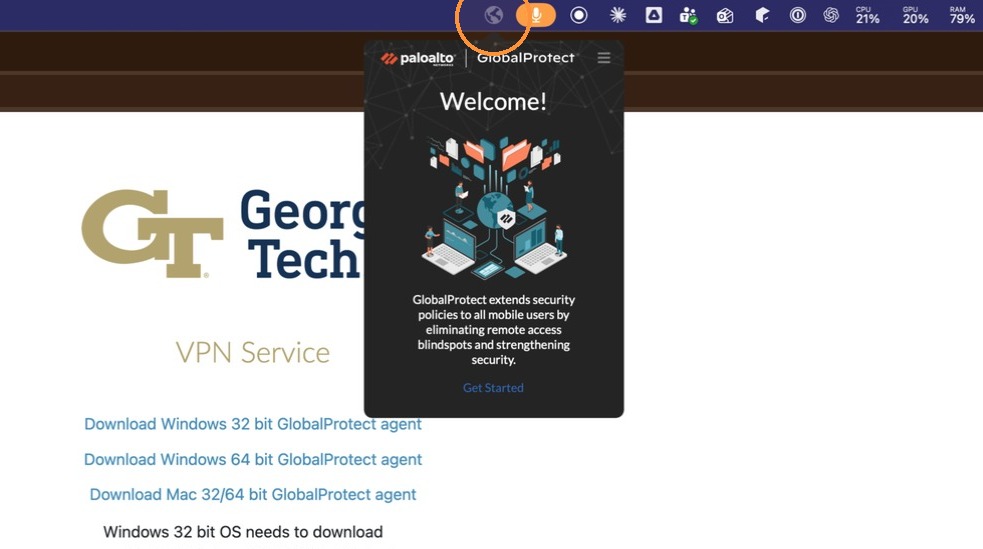
11. Open the GlobalProtect application and enter vpn.gatech.edu as the portal address.
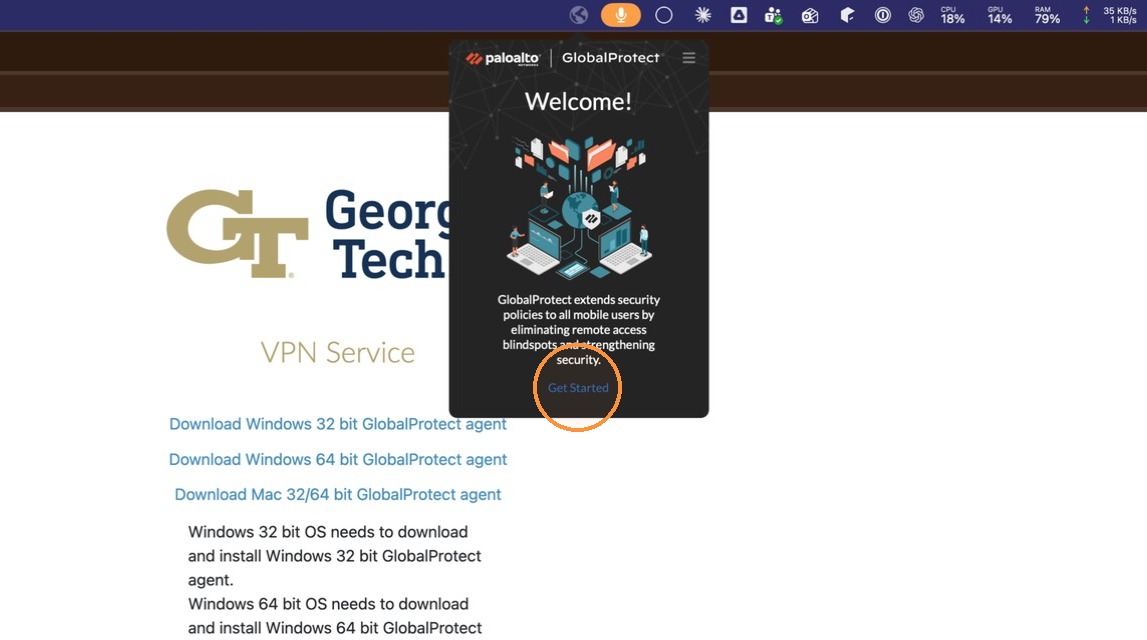
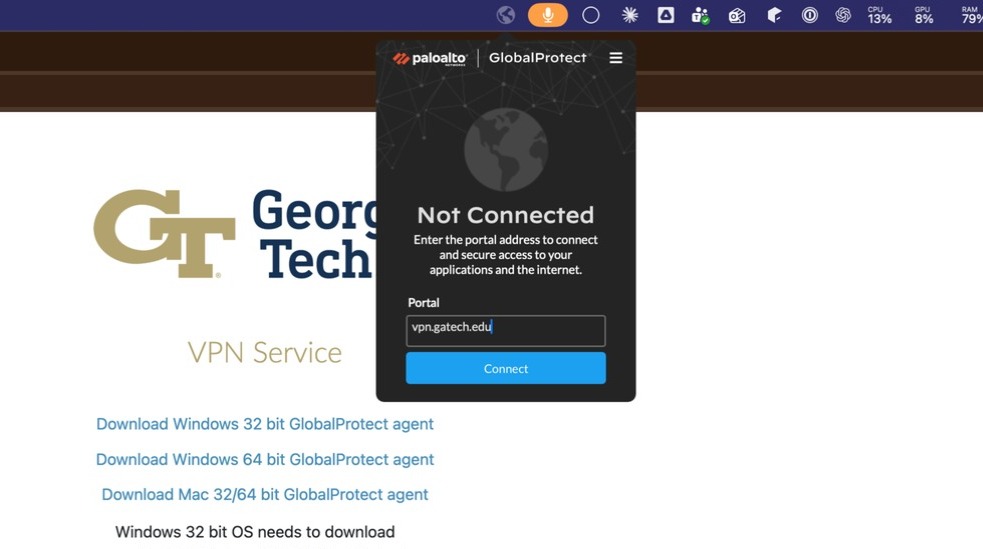
12. Log in to the GlobalProtect client with your username and password.
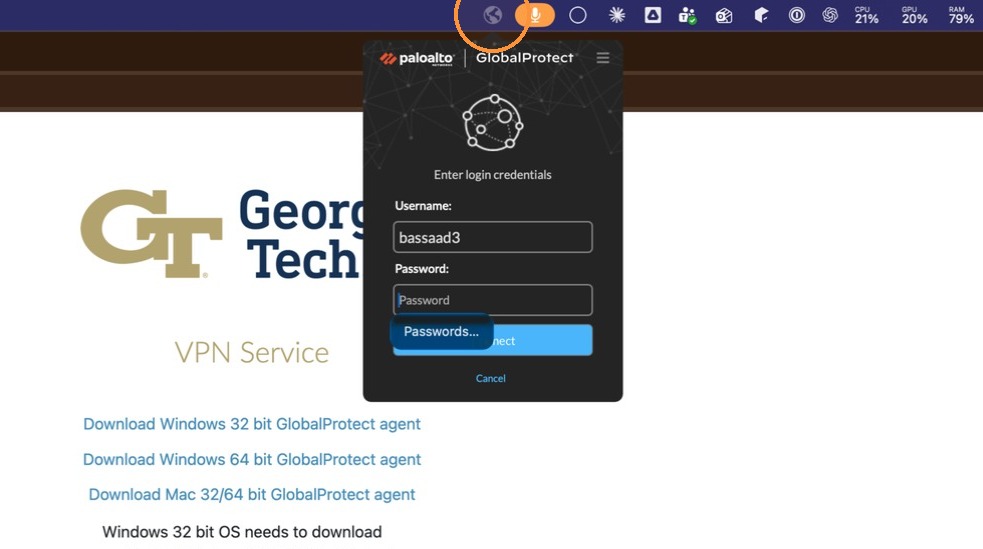
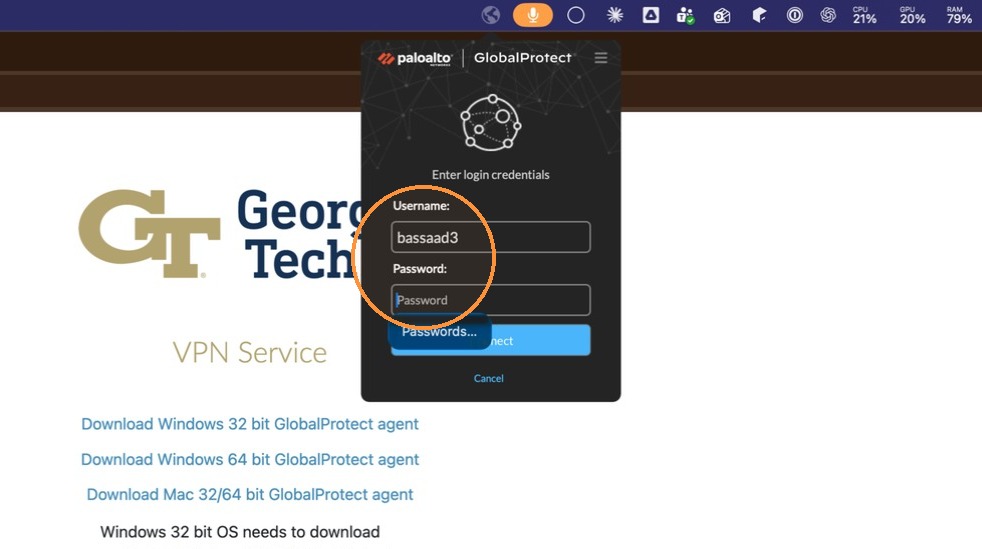
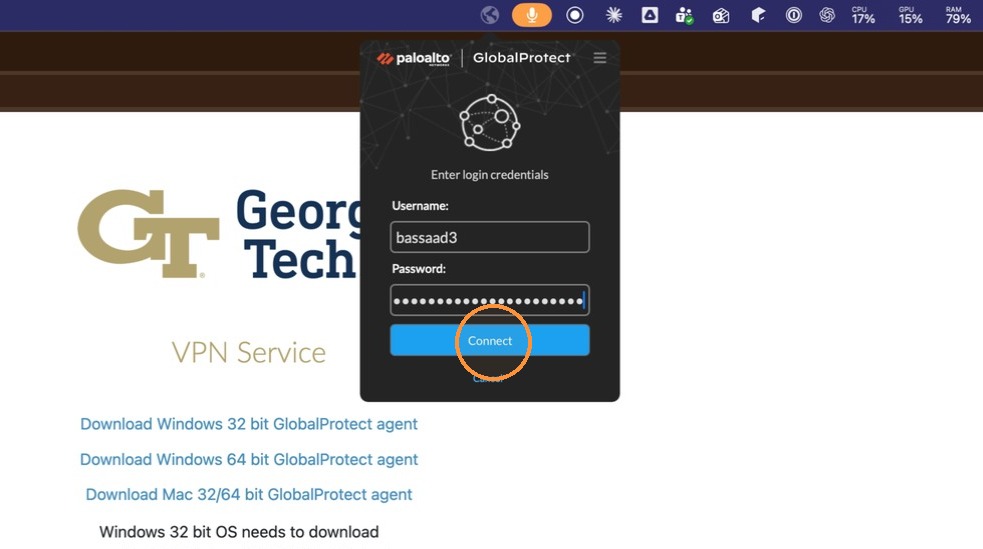
13. Confirm that the VPN status shows as Connected.
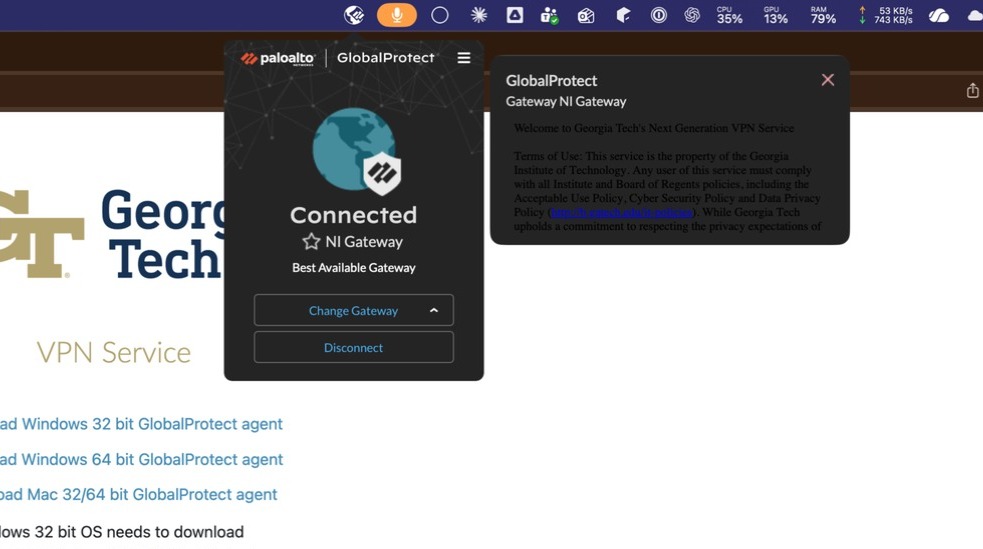
Alert: The mac client remains persistent in the menu bar even if you are not connected to the VPN.
If you wish to quit the client entirely, from a command line type:
launchctl unload /Library/LaunchAgents/com.paloaltonetworks.gp.pangp*
To launch the client again:
launchctl load /Library/LaunchAgents/com.paloaltonetworks.gp.pangp*